Follow these steps to add a video to your page using the editor:
Open the Video Element Settings
Load your page or template and locate the video placeholder section.
Click the Edit option from the green menu at the top left of the video block.Select a Video Type
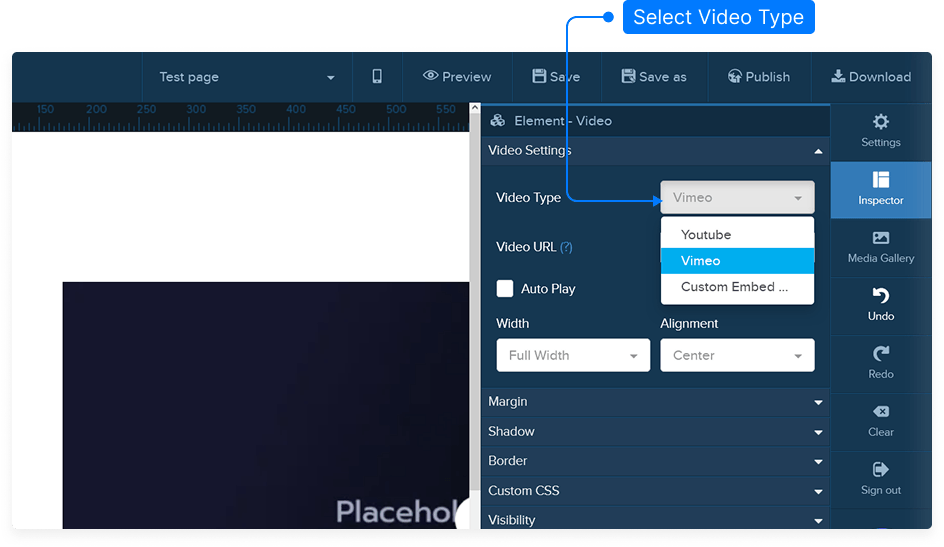
At the top of the settings panel, open the Video Type dropdown menu.
You’ll see three options:YouTube
Vimeo
Custom Embed Code
Add a YouTube Video
Go to YouTube and find the video you want to add.
Copy the video’s URL.
Return to the editor and select YouTube from the Video Type dropdown.
Paste the copied URL into the Video URL field.
The video preview will appear on your page automatically.
Add a Vimeo Video
Visit Vimeo and choose your video.
Copy the video URL.
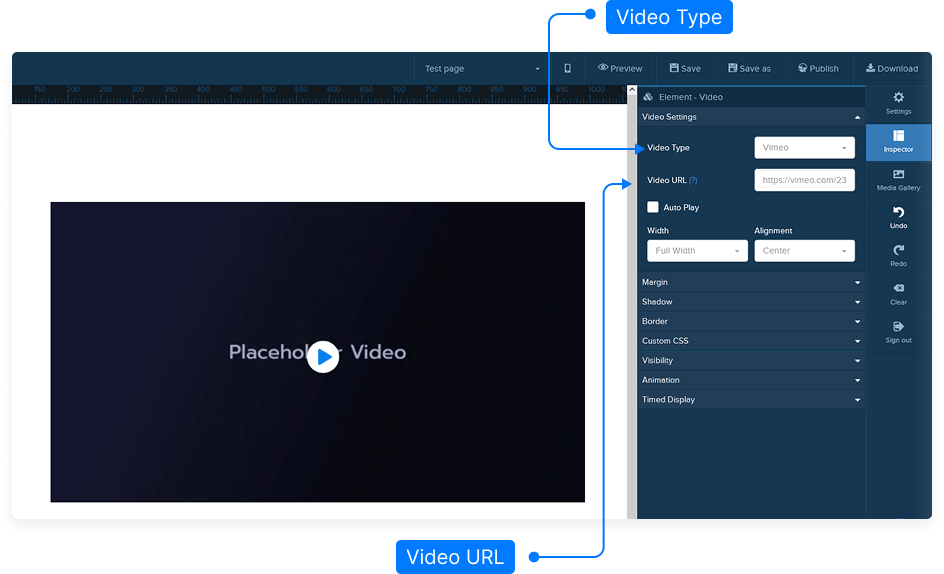
Return to the editor and select Vimeo from the Video Type menu.
Paste the URL into the Video URL field.
Your Vimeo video will load in the preview area.
Add a Custom Embed Code
If you’re using an external video player, copy the HTML embed code provided by that service.
Return to the editor and select Custom Embed Code from the Video Type dropdown.
Paste the embed code into the provided field.
Note: A preview will not appear within the editor for custom embeds, but it will display correctly once you save and preview your page.
Save and Preview
Click Save to apply your changes.
Preview your page to confirm the video appears and functions properly.
Tip: Always remember to save your work after adding or updating your video settings.