How to Add Code in Head & Body Tags
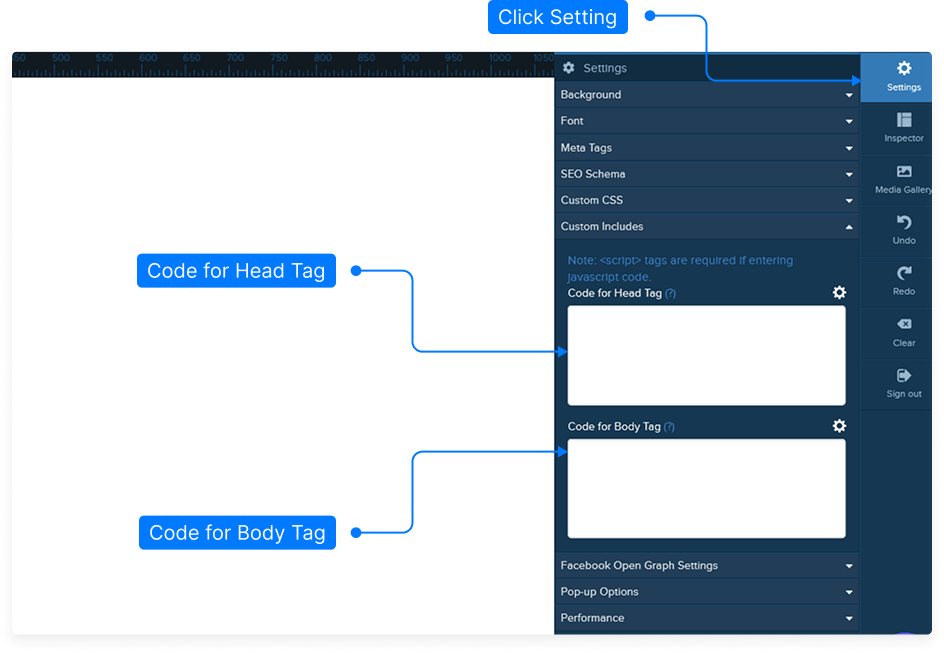
Step 1: Click Settings
From the right sidebar, click on Settings.
Step 2: Open Custom Includes
Scroll down and expand Custom Includes.
Step 3: Add Code to Head Tag
Paste tracking scripts, meta tags, or verification codes inside the Head Tag field.
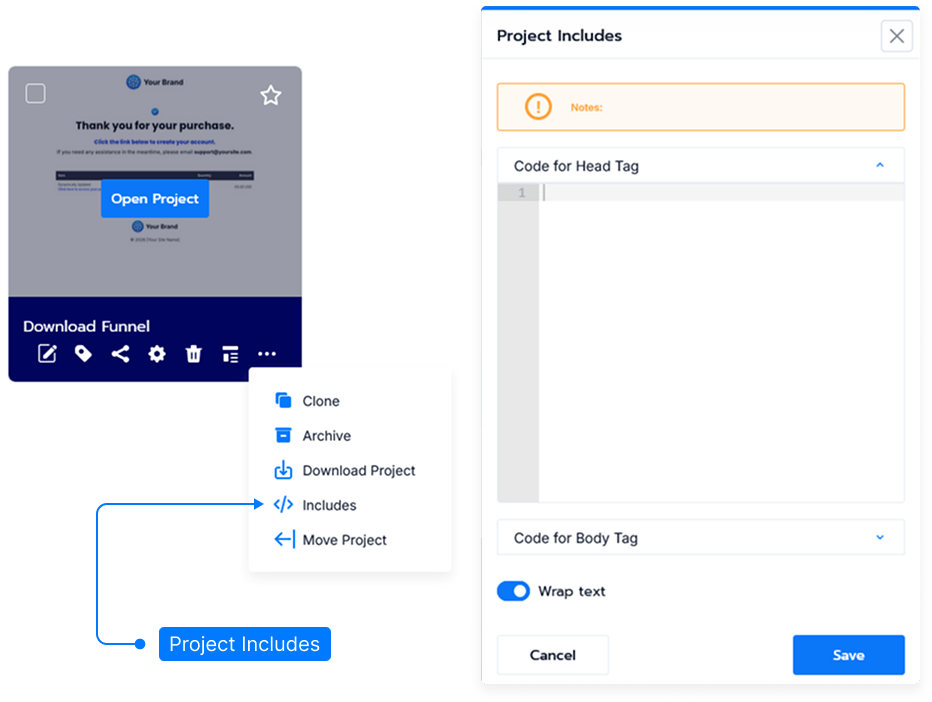
Project Includes:
Hover project card then Click Three Dot icon to add project includes.
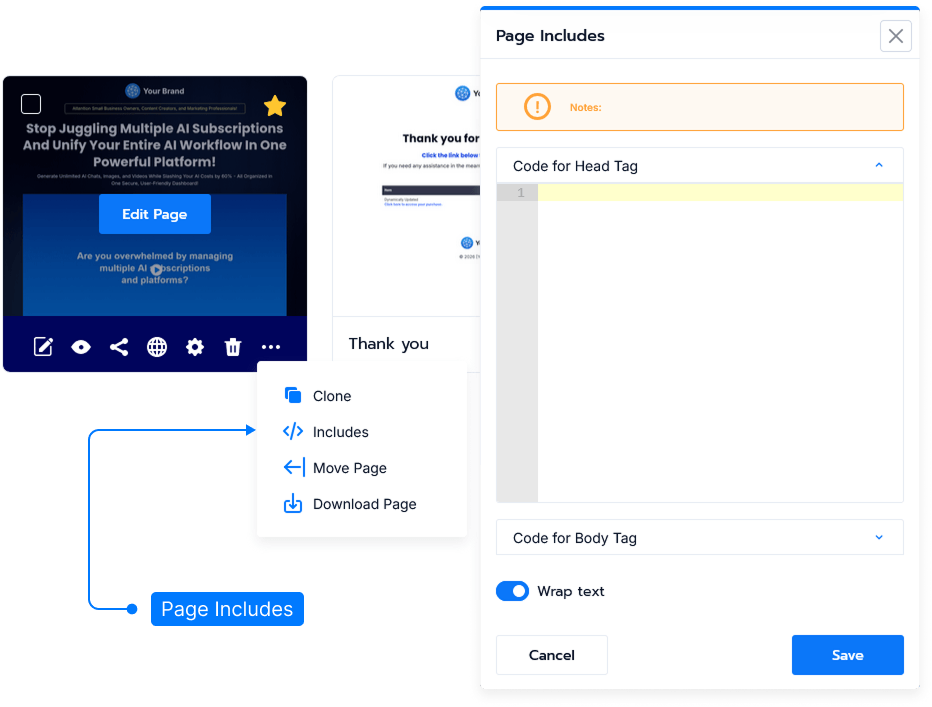
Per Page Includes:
Hover Page card then Click Three Dot icon to add Per page includes.
How to Add Custom HTML, JS & CSS
Step 1: Click Add Element
Inside your page builder, click on Add Element.
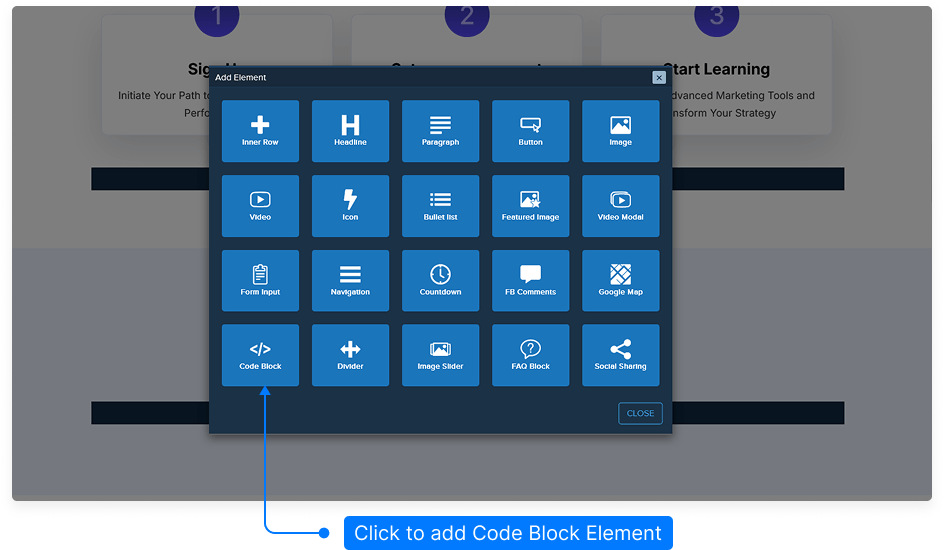
From the popup window, select Code Block.
Step 2: Click Code Block
Scroll down and click on the Code Block element.
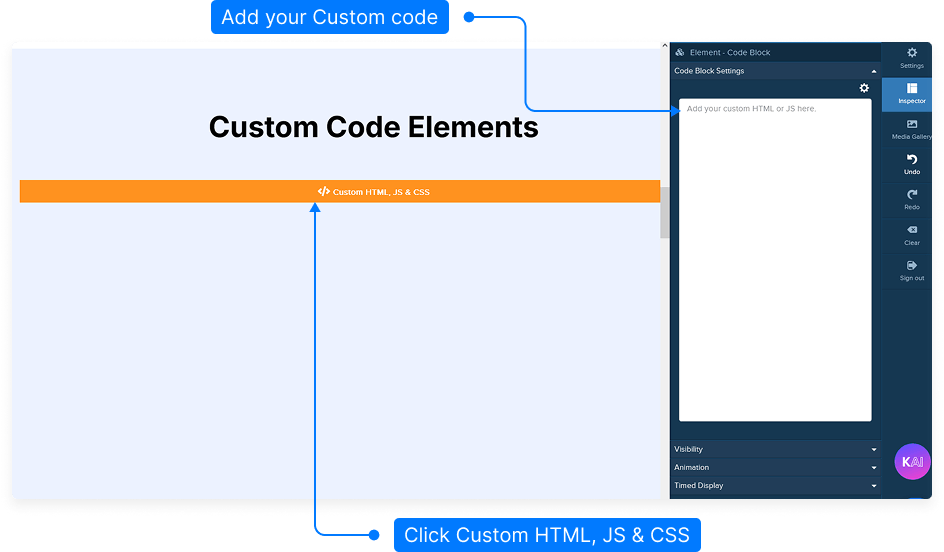
Tip: Use Code Block when you want to insert custom HTML, CSS, or JavaScript.
Step 3: Add Your Custom Code
Click on the element and paste your custom code inside the editor panel.