This tutorial explains how to download your project as a ZIP file so you can access all your files locally or upload them to another platform such as a content management system or web builder.
Step 1: Locate the Download Option
Open your project in the editor.
Scroll to the top right corner of the editor interface.
Click the Download button.
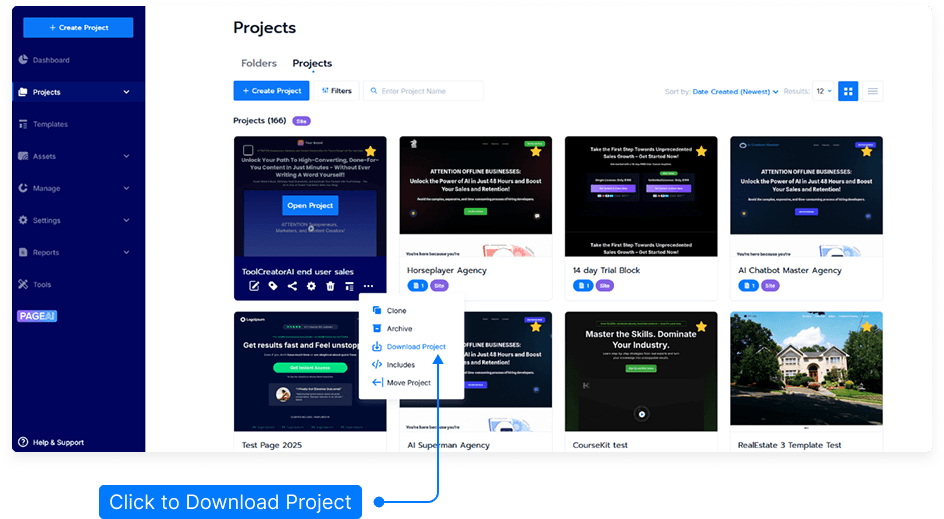
Step 2: Prepare and Download the ZIP File
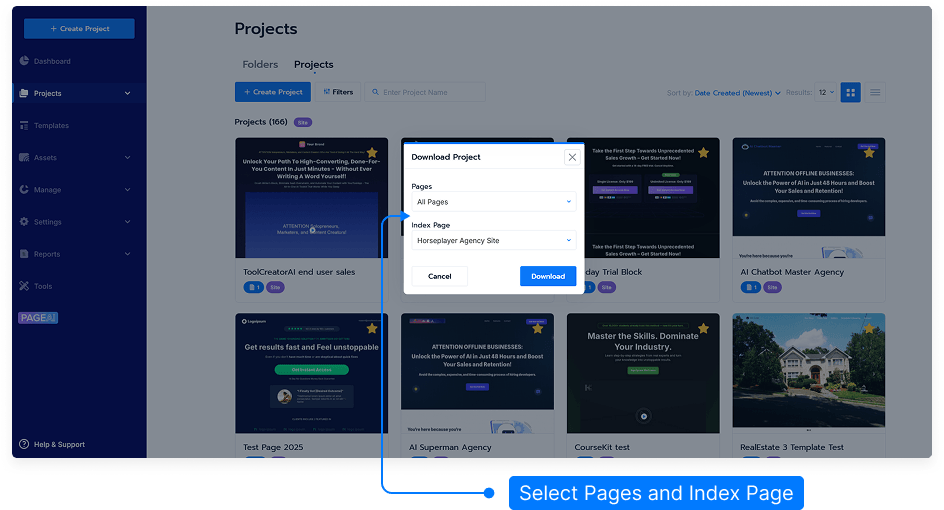
Once you click Download, the system will begin preparing your ZIP file package.
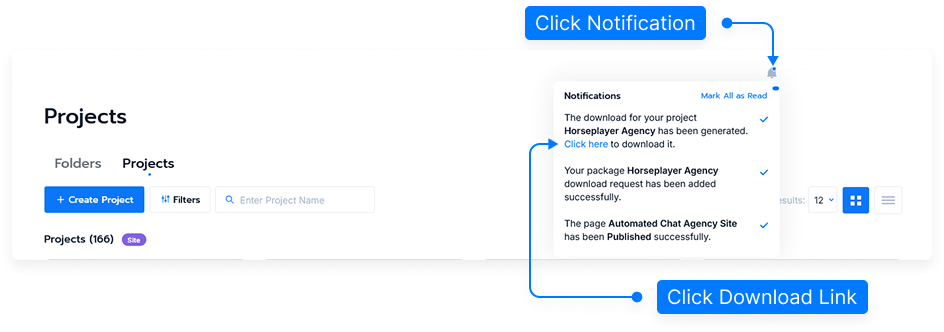
After processing, you’ll see an option labeled Download Package.
Click Download Package to start the download.
Click Notification Icon then it will visible download link
Step 3: Locate and Extract Your Downloaded Project
Once the download is complete, navigate to your Downloads folder or the location where your browser saves files.
Locate the ZIP file of your project (e.g., my-project.zip).
Move the file to your desired location, such as your desktop.
Right-click the ZIP file and select Extract All or use your preferred extraction tool.
Step 4: Review the Extracted Files
After extraction, open the folder to view your project files. You will find:
HTML – your main web page structure.
CSS – style files controlling page design and layout.
JavaScript – files handling interactivity and functionality.
Images – all media assets used in your project.
Step 5: Use Your Project Files
You can now upload these files to any external web hosting platform, content management system, or website builder that supports custom HTML uploads.
And that’s it! You’ve successfully downloaded and extracted your project, ready to use it anywhere you choose.