This guide explains how to create, edit, and adjust columns within your page layout. It also reviews how sections, rows, and design elements are structured in layers.
Understanding the Layout Structure
When building a design block, the structure follows a layered approach:
Section — the base layer (usually represented by a dark blue menu).
Row — placed inside a section (represented by a light blue menu).
Design Elements — placed inside columns within a row (represented by a green menu).
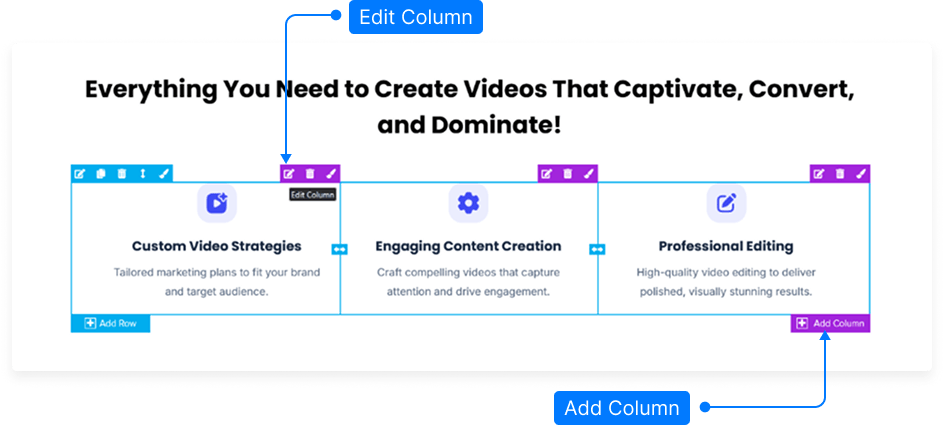
Within a row, you can have one or more columns — these are shown with a purple menu.
Editing an Existing Column
Hover over the column (purple menu) inside your row (light blue area).
Click the purple column menu to open the Inspector Panel.
Use the options in the Inspector to edit the column’s properties (such as spacing, background, or alignment).
Adding a New Column Layout
Create a section.
Start by adding a new section to your page.Add a row to the section.
Click the area inside your new section and select Add Row.Choose a column layout.
When prompted, choose the column structure you want, such as:Single column
Double columns
Triple columns
Custom layout
For example, selecting Double Columns creates two columns side by side.
Add design elements to columns.
Once the columns are created, you can place your design elements (text, images, buttons, etc.) inside each column.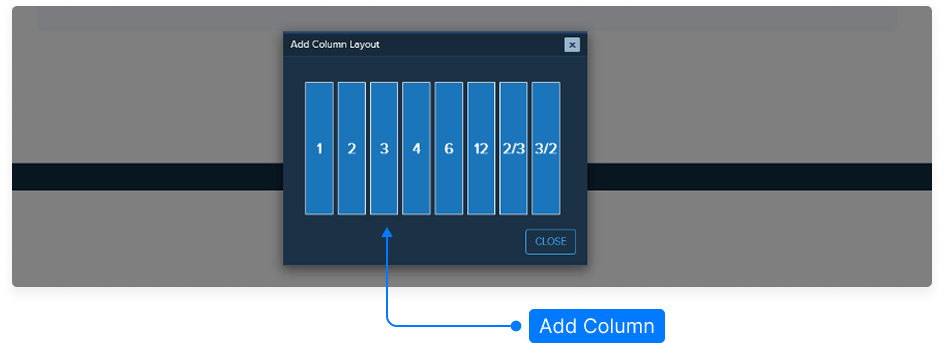
Adding a Column to an Existing Row
Hover over the row (light blue menu).
Click the Add Column option in the row menu.
A new column will appear — for example, turning a two-column row into three columns.
Adjusting Column Sizes
Hover over the borders between two columns.
Click and drag to adjust the width of each column to your preferred size.
Final Steps
After making your changes, always save your page to keep your progress.
You can continue editing column styles and content within the Inspector panel.
And that’s it — you’ve successfully created and adjusted columns in your layout.